Full Guideline — About Kwai Account
Pixel Setup
Before you begin optimizing your ad campaigns, properly setting up your
Kwai account is crucial. In particular, correctly configuring your Kwai account's pixel
settings can allow for more accurate tracking of ad data.You can use the following steps as
a reference:
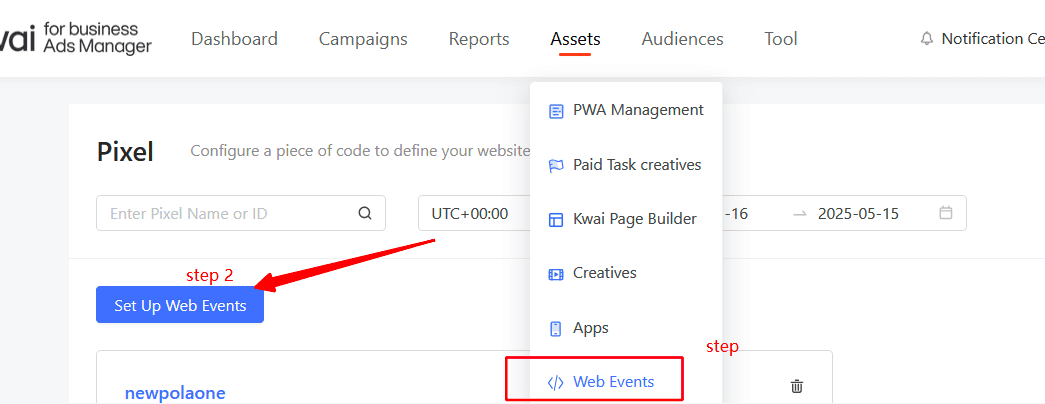
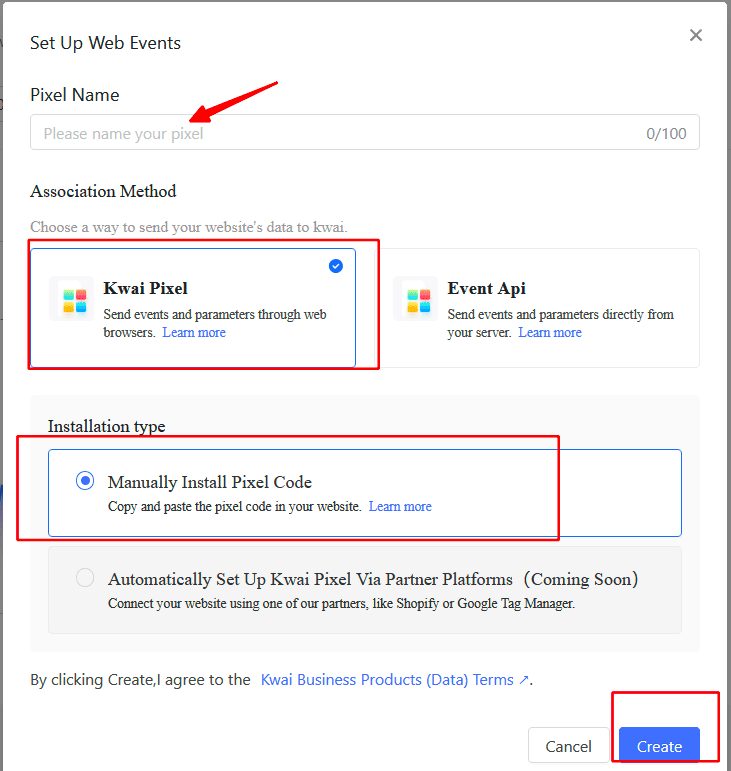
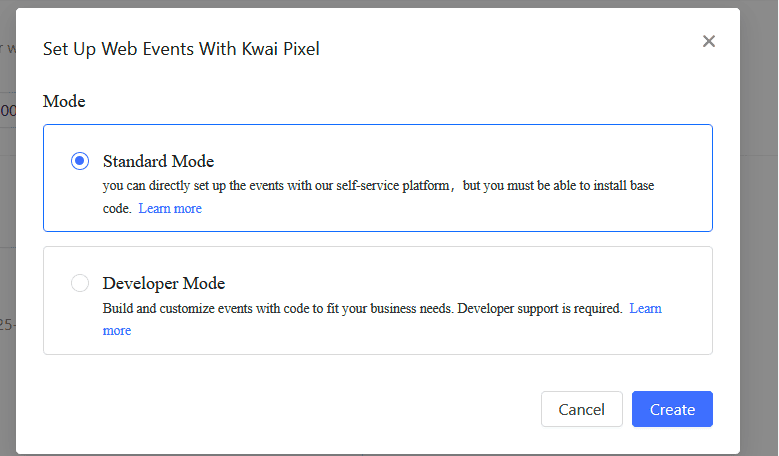
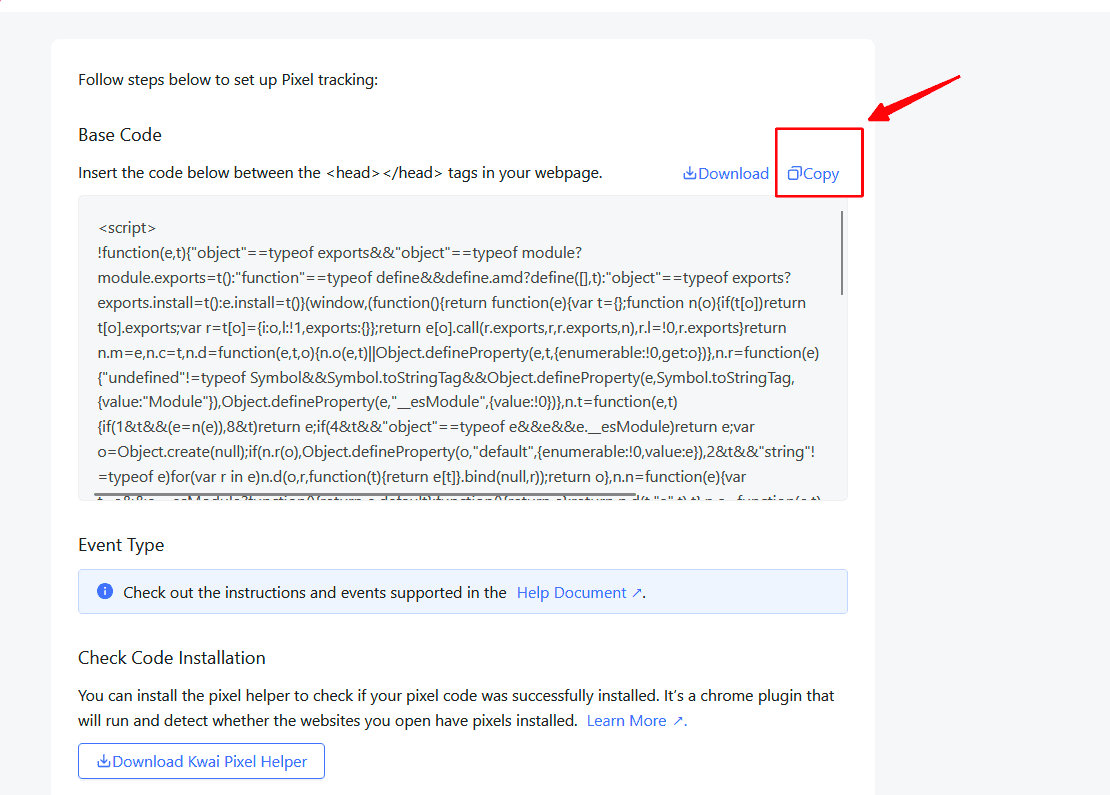
How to set up your pixel
How to set up pixel event
1.Set up the events you want to track based on your specific needs; the three
basic events are:
- View Content
- Complete Registration
- Top-Up Completed
2.Three ways to set up the event
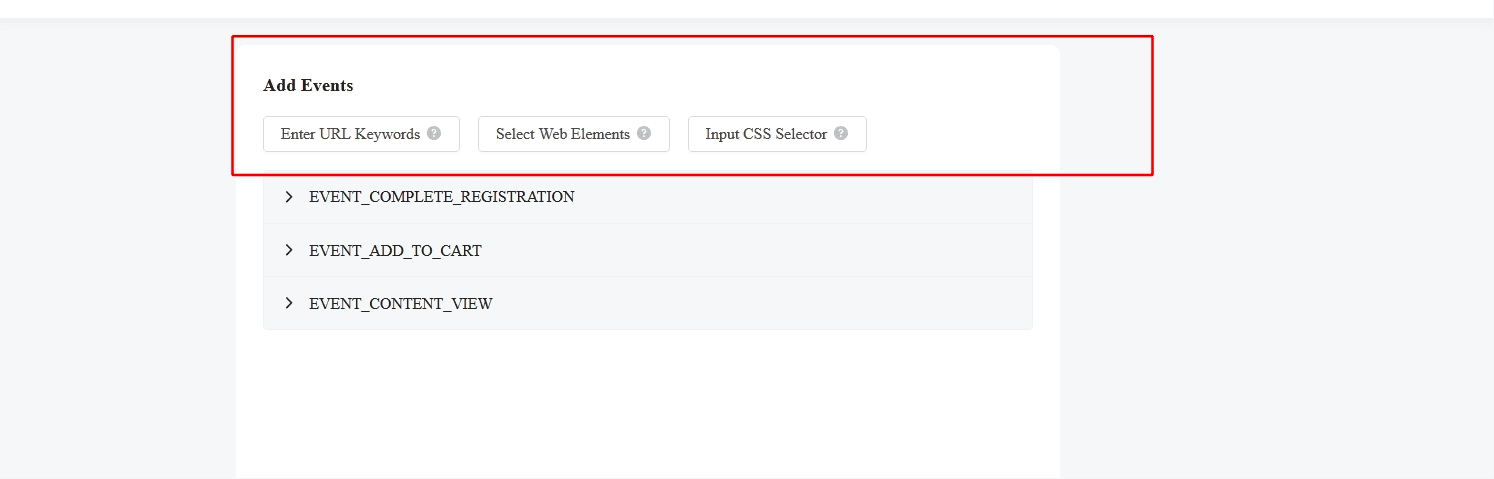
3.View content:choose Enter URL Keywords, then insert your LP link
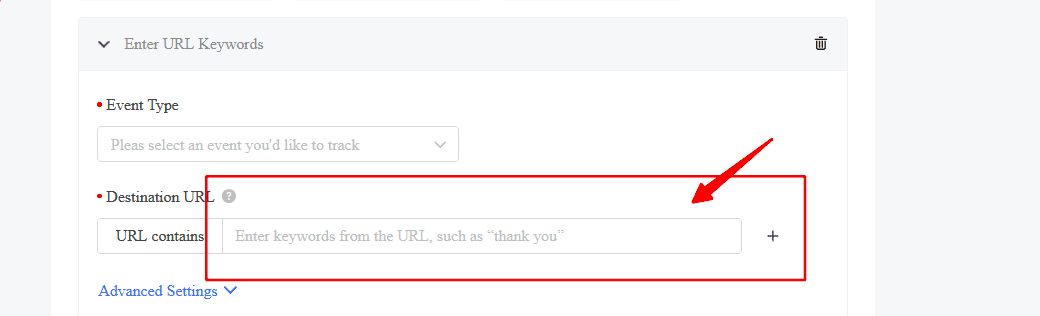
4.Complete Registration&Recharge: Select Web Elements, selecting the button
for registration (on your ms site) and the button for recharge as tracking elements (on your
ms site).
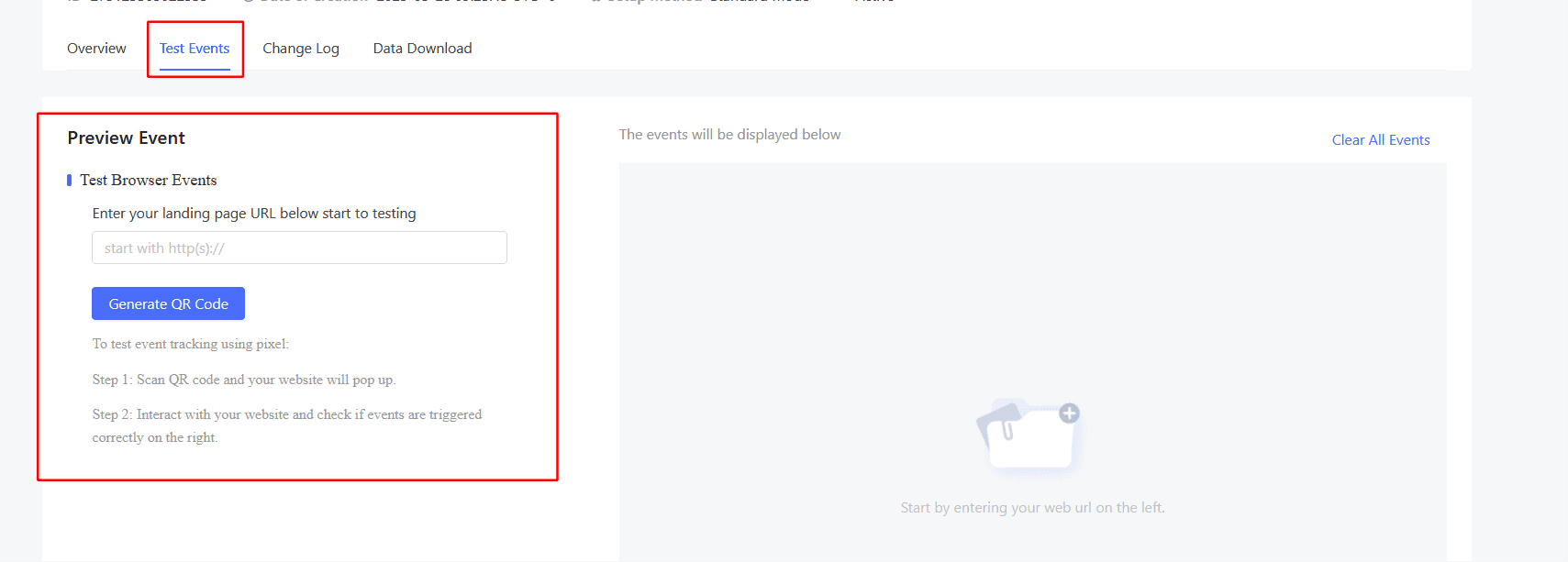
5.Once all pixel events are set up, test to ensure the preview events are
showing

Pixel problem self-check
Data gap
Problem definition: There is a gap between the data reported by
the customer and the data reported on our ads manager platform.
Pre-understanding: Data gap is just a phenomenon. We need to
clarify the core demands of customers. For example, the core demand of customers is that the
account volume is not increasing, the account volume is decreasing, or the cost is over.
Feedback the core demands to sales operations, and we will arrange solutions based on the
core demands.
- Number of customer backend < number of Kwai backend
No need to solve; Kwai receives a lot of data, which is convenient for running volume.
If you want to control costs, you can calculate the cost based on the customer backend
and calculate the platform bid based on the number of returns.
- Number of customer backend > number of Kwai backend
This may cause Kwai to fail to achieve volume, so the problem needs to be investigated.
The specific troubleshooting ideas are as follows.
Troubleshooting Guidelines:
- Time Calibration
Advertisers should provide the time interval and time zone where the data discrepancy
occurs.
- Event Calibration
Verify whether the client-side event trigger is consistent with the pixel event trigger
used for tracking.
- Inconsistent Definition of Data Indicators
For example, in the case of deduplicated payment events:
On Kwai’s DSP delivery platform, deduplication is based
on
Creative ID and Request
ID.
On the customer’s backend, deduplication may be based on User ID.
Although both are labeled as “deduplicated payments,” the statistical definitions
differ, leading to data discrepancies.
- Inconsistent Reporting Processes
For example, when tracking registration events:
On Kwai’s side, the reporting process is:
User registers on the front end → Front end sends data to the backend → Backend confirms
and returns → Front end triggers report to Kwai.
On the customer’s backend, a registration is recorded as soon as the backend
receives
the registration request.
Because Kwai’s reporting chain is longer, delays or deductions may occur, resulting in
data gaps.
- Inconsistent Tracking Points
For example, for registration counts:
The website may have multiple pages where users can
register.
The customer’s R&D team may only track and report a few of
these pages to Kwai.
However, the backend counts all registration behaviors, causing
a data mismatch.
- Data Calibration
Confirm whether the data attribution standard is consistent between Kwai and the
customer’s backend.
Exposure-based calibration: Records event data on the day the
ad is shown.
Conversion-based calibration: Records event data on the day the
event actually occurs.
- Channel Clarity
Verify whether the customer’s backend data includes only Kwai traffic, or if it is mixed
with other channels and organic traffic.
- Attribution Calibration
If only the Kwai channel is being analyzed, clarify how the customer attributes events
to Kwai.
For instance:
Kwai attributes events that occur on landing pages opened
within the Kwai app, or user
actions on shared ad landing pages, to the Kwai channel.
If the customer uses a different attribution model, data
discrepancies may arise.
Division of investigation:Agent: Pre-investigate customer
problems based on time caliber, data caliber, and event caliber.
If there is still a data gap after the caliber is aligned, clarify the customer
problem and organize the following information for PSO:
- 1.Account ID:
- 2.URL for delivery:
- 3.Pixel ID:
- 4.Event name with gap:
- 5.Time Period + time zone:
- 6.Event scope:
- 7.Data scope:
- 8.Attribution scope:
- 9.Data comparison excel under unified scope:
- 10.Related screenshots:
Issue 1: Failed to Detect the event
Problem Definition:
The event cannot be tested or previewed in the Ads Manager – Test Event module.
Handling Procedure
- If the Pixel Helper does not indicate a successful event trigger:
Check whether the event setup is correct.
If the Pixel Helper displays an error message, follow the
instructions provided in
the prompt to correct it.
Pixel Helper link: https://chromewebstore.google.com/detail/kwai-pixel-helper/egbeiaidfnjbliaaoijfcnopfopcnkbd?hl=en
-
If the Pixel Helper shows no error message but the event is still not
triggered:
Guide the customer to preview the event directly in the
Ads Manager.
If the event preview is successful, the issue can be
ignored — the Pixel Helper
display may simply be delayed or inaccurate.
If the event preview fails, proceed to Category 3: Event
Troubleshooting for further
diagnosis.
Issue 2: Event Preview Failed
Problem Definition
The event could not be successfully tested in the Ads Manager – Test Event module.
Troubleshooting Steps
- 1.Clarify the Issue
Use CST to confirm and define the specific problem scenario.
- 2.Verify Event Deployment
Use the Pixel Helper to check whether the event code has been deployed successfully.
- 3.If the Pixel Helper Indicates the Event Was Triggered
Successfully
Collect the required diagnostic information as outlined here:
https://docs.corp.kuaishou.com/d/home/fcACOXDflV8pnS7qgO3PRUZ2
- 4.If the Pixel Helper Does Not Indicate a Successful Trigger
If an error message appears: Modify the setup according to the prompt.
If no error message appears: Gather the relevant information to assist with
troubleshooting.
Refer to the same documentation for details:
https://docs.corp.kuaishou.com/d/home/fcACOXDflV8pnS7qgO3PRUZ2
Issue 3: Event Reporting Failed
Problem Definition
The event count remains 0 on the Ads Manager Data Dashboard, indicating that the event
reporting was unsuccessful.
Troubleshooting Steps
- 1.Verification
Use the Experience function under the Creative Dimension to test whether the event
is reported correctly when triggered.
Important Notes:
- The Experience button is only visible after the creative has been launched.
- The event triggering method must be consistent with the R&D embedding point to
ensure accurate reporting.
- 2.Result Interpretation
If the corresponding event count increases by +1 when testing the ad, the event
reporting is functioning correctly.
If the event count does not increase, proceed to collect the following information
for further troubleshooting.
- 3.Information Collection List
[Provide detailed list or template for required data collection here.]
https://docs.corp.kuaishou.com/d/home/fcACOXDflV8pnS7qgO3PRUZ2_
FAQ
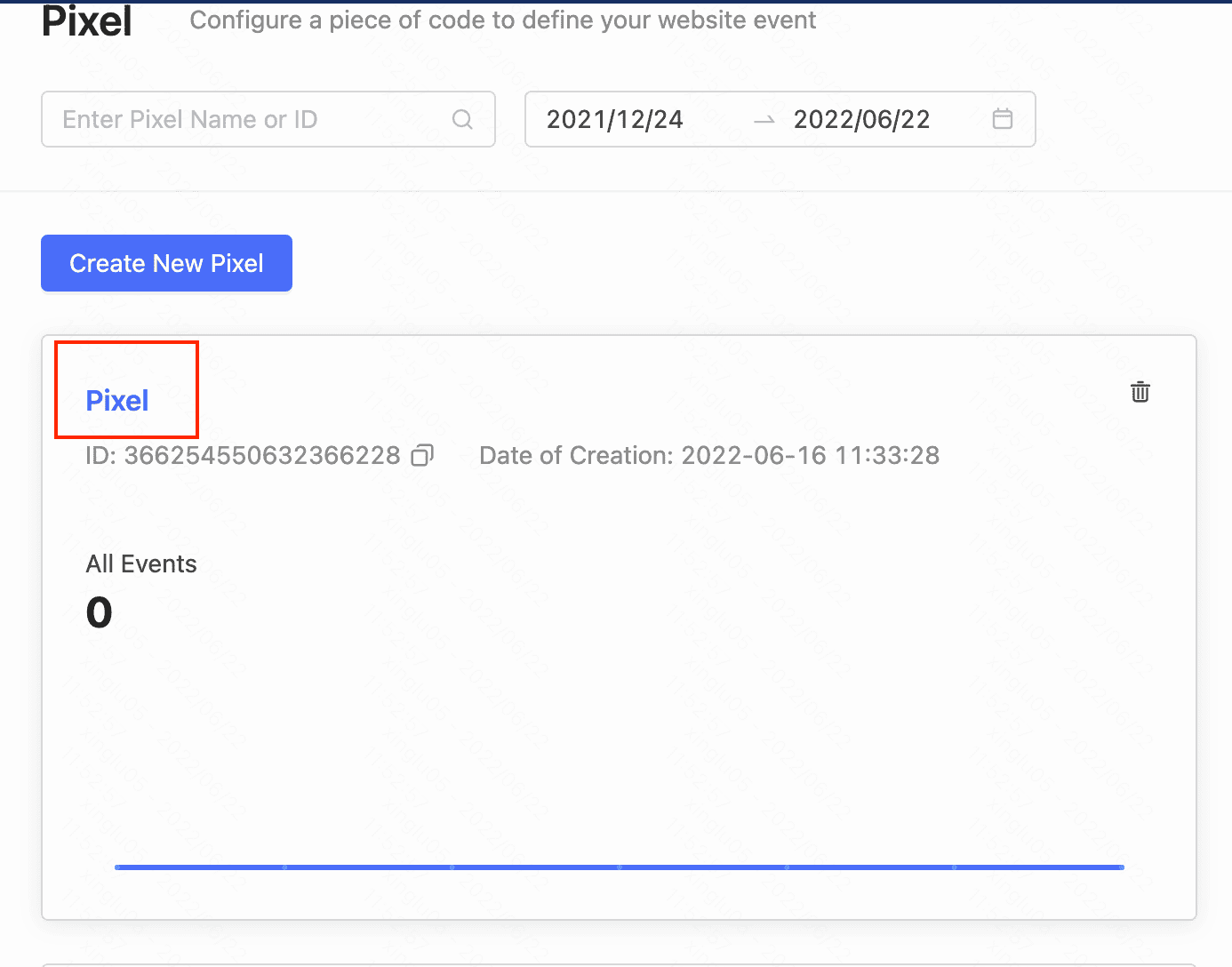
Q: Where is the pixel preview interface? Can't find it?
A: Click the pixel name to enter the preview interface
Q: Do I need to scan the QR code on the Kwai app to preview the
pixel?
A: Not necessarily. You can use a mobile phone/browser to scan the QR
code to preview.
Q: Can multiple pixels be embedded in one delivery webpage?
A: No. It is recommended to embed only one pixel in one website.
Q: Can multiple pixels be created under one advertiser account?
A: Yes. Just make sure that the corresponding webpage selects the
corresponding pixel when planning and creating.
Q: Does Kwai’s pixel conflict with other platform pixels embedded on
the same webpage?
A: No, Kwai’s pixel does not conflict with pixels from other
platforms.
Q: Pixel attribution data is inaccurate?
A: Check whether the pixel code is configured correctly
Whether standard mode and developer mode are used at the same time It is strongly
recommended to select only one mode (developer mode/standard mode) during the same pixel
creation process because creating the same event in multiple modes will cause the pixel
to be repeatedly reported, affecting the accuracy of the attribution data.